Read and Produce Reliable CSV
A CSV reader gives us an array of row objects, so the mapping techniques are familiar.
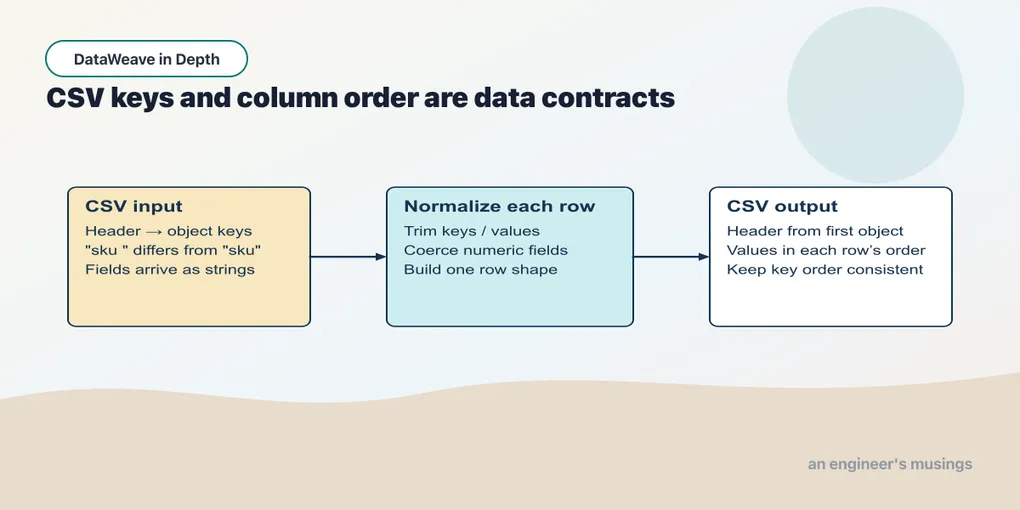
A CSV reader gives us an array of row objects, so the mapping techniques are familiar. The new work is at the boundary: how the file identifies its columns, how it escapes delimiters, and which values still need conversion.
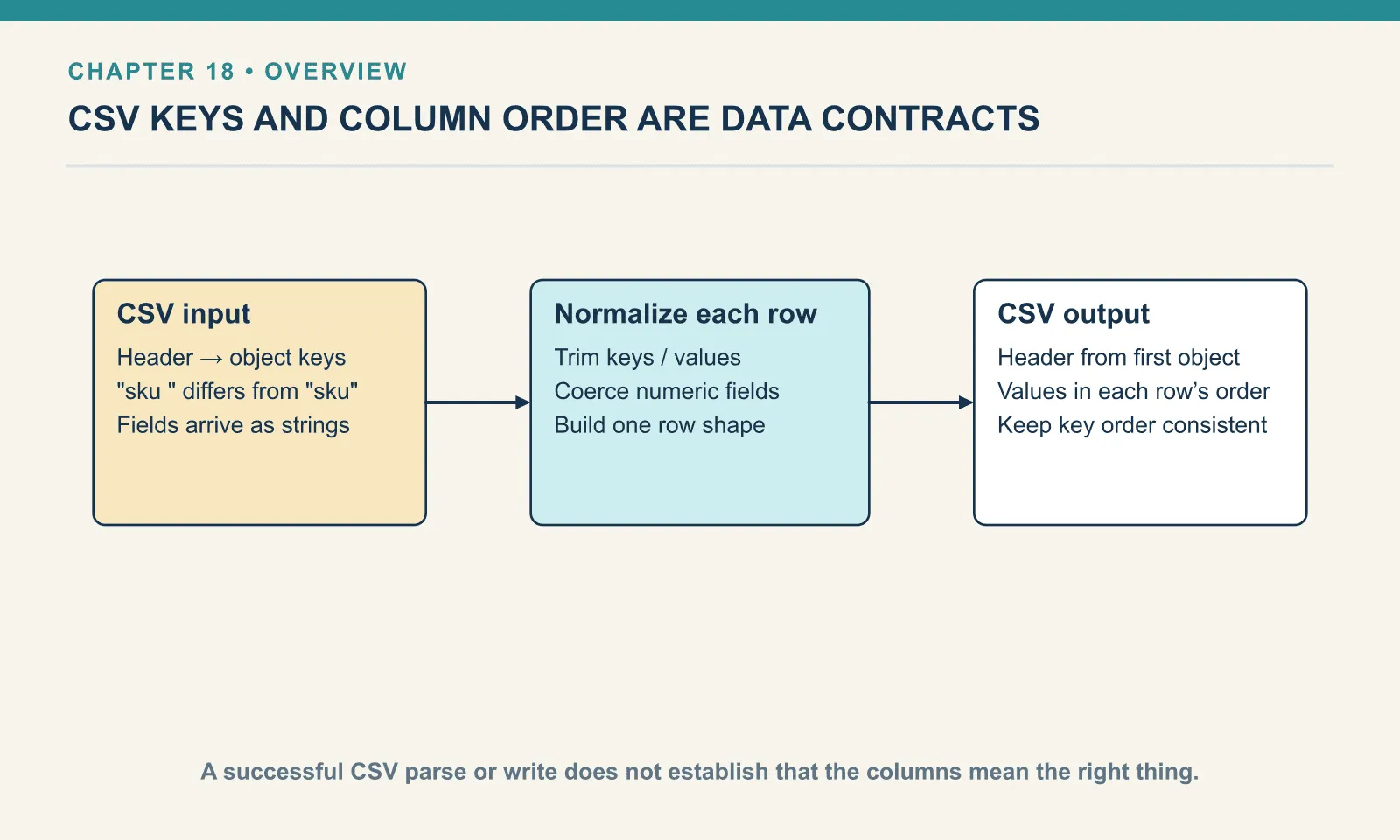
CSV reads as an array of objects
A file with a header row becomes one object per row, keyed by column name:
sku,name,qty,price
PEN-01,Ballpoint pen,4,2.50
PAD-22,Notepad,2,6.00
CLP-08,Binder clip,10,1.00
Example 165 — Read CSV rows.
Input payload — items.csv:
sku,name,qty,price
PEN-01,Ballpoint pen,4,2.50
PAD-22,Notepad,2,6.00
CLP-08,Binder clip,10,1.00
%dw 2.0
output application/json
---
payload map {
sku: $.sku,
name: $.name,
qty: $.qty as Number,
lineTotal: ($.qty as Number) * ($.price as Number)
}[
{
"sku": "PEN-01",
"name": "Ballpoint pen",
"qty": 4,
"lineTotal": 10
},
{
"sku": "PAD-22",
"name": "Notepad",
"qty": 2,
"lineTotal": 12
},
{
"sku": "CLP-08",
"name": "Binder clip",
"qty": 10,
"lineTotal": 10
}
]payload is already an array — you can map straight over the rows. Every CSV field arrives as a String. Chapter 3 showed that multiplication can coerce numeric strings; other operations have different overloads:
Example 166 — Inspect CSV string values.
Use items.csv as payload, as above.
%dw 2.0
output application/json
---
{
  types:      payload[0] mapObject { ($$): typeOf($) as String },
  uncoerced:  payload map { sku: $.sku, qty: $.qty },
  arithmetic: payload map ($.qty * $.price),
  joined:     payload map ($.qty ++ $.price),
  sorted:     (payload orderBy $.qty) map $.qty
}
{
"types": {
"sku": "String",
"name": "String",
"qty": "String",
"price": "String"
},
"uncoerced": [
{
"sku": "PEN-01",
"qty": "4"
},
{
"sku": "PAD-22",
"qty": "2"
},
{
"sku": "CLP-08",
"qty": "10"
}
],
"arithmetic": [
10,
12,
10
],
"joined": [
"42.50",
"26.00",
"101.00"
],
"sorted": [
"10",
"2",
"4"
]
}orderBy $.qty sorts these strings lexically, so ten comes before two. A report ranked by quantity would therefore use the wrong ordering. Multiplication coerced the strings, but neither sorting nor writing JSON did: "qty": "4" remains a string in the output. Coercing once where the value is produced gives the sort, output and comparisons the number they need.
The header row, and the row the reader eats
The reader’s default is header=true: the first line names the columns. With no header in the file, that instruction consumes the first data row:
PEN-01,Ballpoint pen,4,2.50
PAD-22,Notepad,2,6.00
CLP-08,Binder clip,10,1.00
Example 167 — Read headerless data with default settings.
Input payload — items-noheader.csv:
PEN-01,Ballpoint pen,4,2.50
PAD-22,Notepad,2,6.00
CLP-08,Binder clip,10,1.00
%dw 2.0
output application/json
---
payload[
{
"PEN-01": "PAD-22",
"Ballpoint pen": "Notepad",
"4": "2",
"2.50": "6.00"
},
{
"PEN-01": "CLP-08",
"Ballpoint pen": "Binder clip",
"4": "10",
"2.50": "1.00"
}
]Two rows remain, keyed by the first pen’s values — the pen itself is gone. A file of a thousand rows becomes 999 rows with absurd keys. A transform that only counts them sees a shortfall of one and no reason for it. The fix is the reader property header=false, with two places to put it. The first is an input directive, which the CLI honours on a -i input:
Example 168 — Declare a headerless CSV input.
Use items-noheader.csv as payload, as above.
%dw 2.0
input payload application/csv header=false
output application/json
---
payload
[
{
"column_0": "PEN-01",
"column_1": "Ballpoint pen",
"column_2": "4",
"column_3": "2.50"
},
{
"column_0": "PAD-22",
"column_1": "Notepad",
"column_2": "2",
"column_3": "6.00"
},
{
"column_0": "CLP-08",
"column_1": "Binder clip",
"column_2": "10",
"column_3": "1.00"
}
]The second is the third argument to read(), when you have the raw text. Here the file was given to the CLI as .txt, so payload is a string:
Example 169 — Read headerless CSV text.
Input payload — items-noheader.txt:
PEN-01,Ballpoint pen,4,2.50
PAD-22,Notepad,2,6.00
CLP-08,Binder clip,10,1.00
%dw 2.0
output application/json
---
read(payload, "application/csv", { header: false }) map {
sku: $.column_0,
qty: $.column_2 as Number
}[
{
"sku": "PEN-01",
"qty": 4
},
{
"sku": "PAD-22",
"qty": 2
},
{
"sku": "CLP-08",
"qty": 10
}
]Headerless rows are keyed column_0, column_1 and so on — zero-based. Naming them is a map away, and the third exercise shows a way to do it without repeating yourself.
Chapter 17’s nonsense-option trick gives the full set of reader properties on this runtime: streaming, separator, quote, escape, bodyStartLineNumber, ignoreEmptyLine, header and headerLineNumber. The writer’s is separator, encoding, quote, escape, lineSeparator, bufferSize, bodyStartLineNumber, ignoreEmptyLine, header, quoteHeader, headerLineNumber, quoteValues and deferred. Everything below is one of those.
Separators, and the extension that picks the reader
separator is the field delimiter, "," by default. The European convention is a semicolon, usually accompanied by a decimal comma — a second problem hiding behind the first:
sku;name;qty;price
PEN-01;Ballpoint pen;4;2,50
PAD-22;Notepad;2;6,00
CLP-08;Binder clip;10;1,00
Example 170 — Read semicolon-separated rows.
Input payload — items-semicolon.csv:
sku;name;qty;price
PEN-01;Ballpoint pen;4;2,50
PAD-22;Notepad;2;6,00
CLP-08;Binder clip;10;1,00
%dw 2.0
input payload application/csv separator=";"
output application/json
---
payload[
{
"sku": "PEN-01",
"name": "Ballpoint pen",
"qty": "4",
"price": "2,50"
},
{
"sku": "PAD-22",
"name": "Notepad",
"qty": "2",
"price": "6,00"
},
{
"sku": "CLP-08",
"name": "Binder clip",
"qty": "10",
"price": "1,00"
}
]The columns split correctly, but the price still contains a decimal comma. Coercion exposes that next problem:
Example 171 — Try parsing a decimal comma directly.
Input payload — items-semicolon.txt:
sku;name;qty;price
PEN-01;Ballpoint pen;4;2,50
PAD-22;Notepad;2;6,00
CLP-08;Binder clip;10;1,00
%dw 2.0
output application/json
---
read(payload, "application/csv", { separator: ";" }) map ($.price as Number)[ERROR] Error while executing the script:
[ERROR] Cannot coerce String (2,50) to Number
4| read(payload, "application/csv", { separator: ";" }) map ($.price as Number)
^^^^^^^^^^^^^^^^^
Trace:
at 171-decimal-comma-fails::main (line: 4, column: 59) at:
4| read(payload, "application/csv", { separator: ";" }) map ($.price as Number)
^^^^^^^^^^^^^^^^^Bare as Number does not interpret this decimal comma, and the CSV reader does not perform numeric coercion. One fix is a string replace before the coercion. Do it at the boundary rather than downstream, because a "2,50" that leaks past this point looks like a perfectly good string:
Example 172 — Normalize a decimal comma before conversion.
Use items-semicolon.txt as payload, as above.
%dw 2.0
output application/json
---
read(payload, "application/csv", { separator: ";" }) map {
  sku:   $.sku,
  price: ($.price replace "," with ".") as Number
}
[
{
"sku": "PEN-01",
"price": 2.5
},
{
"sku": "PAD-22",
"price": 6
},
{
"sku": "CLP-08",
"price": 1
}
]Tabs work the same way, with { separator: "\t" }. What I could not do was hand the CLI the .tsv file directly:
[ERROR] Error while executing the script:
[ERROR] Unable to detect reader type for `payload`, as no MimeType was set. Please declare the input directive i.e. input `payload` application/xml
The CLI maps an extension to a reader, and .tsv is not on its list. As chapter 17 showed, something outside the body decides which reader runs, and without that decision the script cannot proceed. In a Mule flow the equivalent is a connector that delivers a file with no media type, and the fix is the same input directive the error suggests.
Quotes and escapes: the default is not the one you think
In the RFC 4180 convention, a field containing a comma is wrapped in double quotes, and any quote inside it is doubled. This file uses that convention:
sku,name,qty,price
PEN-01,"Ballpoint pen, blue",4,2.50
PAD-22,"Notepad ""A5""",2,6.00
CLP-08,Binder clip,10,1.00
Example 173 — Read doubled quote characters.
Input payload — items-quoted.txt:
sku,name,qty,price
PEN-01,"Ballpoint pen, blue",4,2.50
PAD-22,"Notepad ""A5""",2,6.00
CLP-08,Binder clip,10,1.00
%dw 2.0
output application/json
---
{
defaultEscape: read(payload, "application/csv") map $.name,
rfc4180: read(payload, "application/csv", { escape: "\"" }) map $.name
}{
"defaultEscape": [
"Ballpoint pen, blue",
"Notepad ",
"Binder clip"
],
"rfc4180": [
"Ballpoint pen, blue",
"Notepad \"A5\"",
"Binder clip"
]
}The quoted comma survives both reads, but the default read of "Notepad ""A5""" loses A5 without an error. The reader’s default escape character is a backslash, so doubled quotes need escape: "\"" for the RFC convention. A file using backslashes (Ballpoint pen \"blue\") read correctly with no properties, which I also checked.
Establish both the quote and escape conventions with the producer. Some exports use single quotes and need quote: "'"; under the defaults, 'Ballpoint pen, blue' reads as 'Ballpoint pen, losing the rest to the comma. A delimiter inside a product name makes a useful test of that agreement.
The writer has the same default, and it shows the moment a value contains the separator:
Example 174 — Choose CSV quoting and escaping.
%dw 2.0
output application/json
var rows = [{ sku: "PEN-01", name: "Ballpoint pen, blue" }, { sku: "PAD-22", name: "Notepad \"A5\"" }]
---
{
  defaults:    write(rows, "application/csv"),
  quoteValues: write(rows, "application/csv", { quoteValues: true }),
  rfc4180:     write(rows, "application/csv", { quoteValues: true, escape: "\"" }),
  quoteHeader: write(rows, "application/csv", { quoteValues: true, quoteHeader: true, escape: "\"" })
}
{
"defaults": "sku,name\nPEN-01,Ballpoint pen\\, blue\nPAD-22,Notepad \\\"A5\\\"\n",
"quoteValues": "sku,name\n\"PEN-01\",\"Ballpoint pen, blue\"\n\"PAD-22\",\"Notepad \\\"A5\\\"\"\n",
"rfc4180": "sku,name\n\"PEN-01\",\"Ballpoint pen, blue\"\n\"PAD-22\",\"Notepad \"\"A5\"\"\"\n",
"quoteHeader": "\"sku\",\"name\"\n\"PEN-01\",\"Ballpoint pen, blue\"\n\"PAD-22\",\"Notepad \"\"A5\"\"\"\n"
}The doubled backslashes in this JSON output represent single backslashes in the CSV. With defaults, the writer does not quote these fields; it escapes the comma in Ballpoint pen\, blue. A consumer expecting quoted fields and doubled inner quotes will not interpret that convention correctly.
quoteValues=true wraps every field but still uses the default escape character. Adding escape="\"" produces the doubled-quote form shown in rfc4180; quoteHeader=true extends quoting to the header. Agree the convention with the receiving parser, then round-trip a field containing both a delimiter and a quote before trusting it.
Ragged rows, preamble lines, blank lines
Real exports are not rectangular. A row with fewer fields than the header, and one with more:
sku,name,qty,price
PEN-01,Ballpoint pen,4,2.50
PAD-22,Notepad,2
CLP-08,Binder clip,10,1.00,extra
[
{
"sku": "PEN-01",
"name": "Ballpoint pen",
"qty": "4",
"price": "2.50"
},
{
"sku": "PAD-22",
"name": "Notepad",
"qty": "2"
},
{
"sku": "CLP-08",
"name": "Binder clip",
"qty": "10",
"price": "1.00",
"column_4": "extra"
}
]The short row is missing its price key, so $.price is null there and as Number on it fails. The long row gains a column_4. Neither shape causes a reader error. If you need a rectangular feed, check sizeOf(keysOf($)) per row and reject mismatches.
Exports that begin with a title line or two are common, and headerLineNumber and bodyStartLineNumber exist for them. Their numbering is not documented well, so I ran the combinations:
Acme supplier export
Generated 2026-06-14
sku,name,qty,price
PEN-01,Ballpoint pen,4,2.50
PAD-22,Notepad,2,6.00
Example 175 — Locate a CSV header after a preamble.
Input payload — items-preamble.txt:
Acme supplier export
Generated 2026-06-14
sku,name,qty,price
PEN-01,Ballpoint pen,4,2.50
PAD-22,Notepad,2,6.00
%dw 2.0
output application/json
---
{
h1: read(payload, "application/csv", { headerLineNumber: 1 })[0],
h2: read(payload, "application/csv", { headerLineNumber: 2 })[0],
h3: read(payload, "application/csv", { headerLineNumber: 3 })[0],
h2b4: read(payload, "application/csv", { headerLineNumber: 2, bodyStartLineNumber: 4 })[0],
b3only: read(payload, "application/csv", { bodyStartLineNumber: 3 })[0]
}{
"h1": {
"Acme supplier export": "Generated 2026-06-14"
},
"h2": {
"Generated 2026-06-14": "sku",
"column_1": "name",
"column_2": "qty",
"column_3": "price"
},
"h3": {
"sku": "PEN-01",
"name": "Ballpoint pen",
"qty": "4",
"price": "2.50"
},
"h2b4": {
"Generated 2026-06-14": "PEN-01",
"column_1": "Ballpoint pen",
"column_2": "4",
"column_3": "2.50"
},
"b3only": {
"Acme supplier export": "sku",
"column_1": "name",
"column_2": "qty",
"column_3": "price"
}
}Both properties count lines from 1 (0 behaved like 1). headerLineNumber: 3 is the whole fix for a two-line preamble: the header is line 3 and the body starts on the next line by default. bodyStartLineNumber moves only where the data begins. On its own it leaves the header on line 1 and turns the real header into a data row, which is what b3only shows. The h2 case shows what a one-column header does to the rest: unnamed columns fall back to column_N.
Blank lines are dropped by default (ignoreEmptyLine is true). Set it to false and each blank line becomes a row of { "sku": "" }, which I have never wanted and mention only so the property is not a mystery.
Writing CSV: the columns come from the first object, and only the first
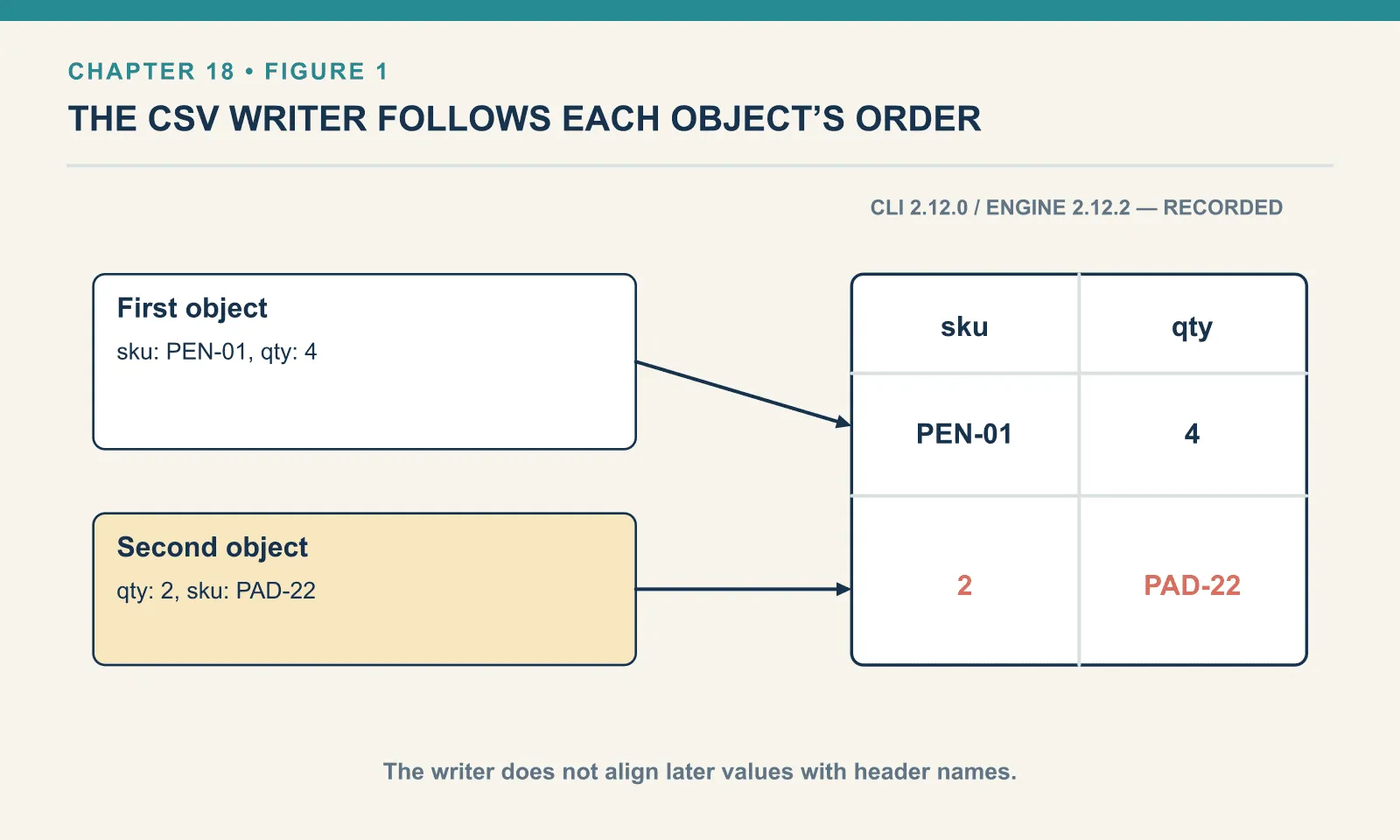
The writer takes an array of objects, emits the first object’s keys as the header, and then writes each object’s values. What it does not do is align later objects to that header by name. I had assumed it did, and this is the run that corrected me:
Example 176 — Inspect CSV column order.
%dw 2.0
output application/csv
---
[
  { sku: "PEN-01", qty: 4 },
  { qty: 2, sku: "PAD-22" },
  { sku: "CLP-08", qty: 10, note: "bulk" },
  { sku: "PEN-01" }
]sku,qty
PEN-01,4
2,PAD-22
CLP-08,10,bulk
PEN-01The second row places the quantity under sku and the SKU under qty. The third adds an unlabelled column, and the fourth has a column missing; all four rows were written with exit code 0. Each object therefore needs the same keys in the same order. Constructing every row with one literal object expression, as the chapter’s map { … } examples do, makes that layout explicit. Writing payload directly leaves the column order to the objects in the input.
A nested object cannot become a cell:
Example 177 — Reject a nested CSV field.
Input payload — order.json:
{ "orderId": "A-1001", "customer": "Dana", "coupon": null, "tags": ["gift", null, "rush"],
  "items": [
    { "sku": "PEN-01", "price": 2.5, "qty": 4, "note": null },
    { "sku": "PAD-22", "price": 6.0, "qty": 2 },
    { "sku": "CLP-08", "price": 1.0, "qty": 10 }
  ] }
%dw 2.0
output application/csv
---
payload.items map { sku: $.sku, dims: { w: 10, h: 20 } }[ERROR] Error while executing the script:
[ERROR] Cannot coerce Object to String
4| payload.items map { sku: $.sku, dims: { w: 10, h: 20 } }
^^^^^^^^^^^^^^^^
Trace:
at 177-write-nested-fails::main (line: 4, column: 39) at:
4| payload.items map { sku: $.sku, dims: { w: 10, h: 20 } }
^^^^^^^^^^^^^^^^The cell needs a scalar value: flatten the object first (w: $.dims.w), or write it to a JSON string the consumer can handle. A single object at the root writes as one row — no enclosing array required. header=false drops the header line; properties such as separator and quoteValues go on the directive:
Example 178 — Write quoted semicolon-separated fields.
Use items.csv as payload, as above.
%dw 2.0
output application/csv separator=";", quoteValues=true, header=true
---
payload map {
  SKU: $.sku,
  Quantity: $.qty
}
SKU;Quantity
"PEN-01";"4"
"PAD-22";"2"
"CLP-08";"10"The header row is your keys, so you name the columns by naming the keys. lineSeparator is the last property worth knowing, because a consumer on Windows may insist on \r\n. write(rows, "application/csv", { lineSeparator: "\r\n" }) produces exactly that, and I checked the bytes through JSON’s escaping rather than trusting a terminal.
A padded supplier upload
The supplier uses semicolons and pads both the header and the values. A selector for sku cannot find the key sku ; trimming values alone leaves that mismatch in place.
sku ;name         ;qty;unit_price
PEN-01 ;Ballpoint pen ;4  ;2.50
PAD-22 ;Notepad       ;2  ;6.00
CLP-08 ;Binder clip   ;10 ;1.00
The worked upload, fixed
Back to the file this chapter opened with. The keys are padded, so trim them before selecting by name. mapObject over each row does that in one pass. Underscores are legal in a bare key, so row.unit_price needs no quoting. The padded name would instead need row."name ":
Example 179 — Normalize an uploaded CSV file.
Input payload — upload.txt:
sku ;name         ;qty;unit_price
PEN-01 ;Ballpoint pen ;4  ;2.50
PAD-22 ;Notepad       ;2  ;6.00
CLP-08 ;Binder clip   ;10 ;1.00
%dw 2.0
output application/json
---
read(payload, "application/csv", { separator: ";" })
map ($ mapObject { (trim($$)): trim($) })
map (row) -> {
sku: row.sku,
name: row.name,
qty: row.qty as Number,
unitPrice: row.unit_price as Number
}[
{
"sku": "PEN-01",
"name": "Ballpoint pen",
"qty": 4,
"unitPrice": 2.5
},
{
"sku": "PAD-22",
"name": "Notepad",
"qty": 2,
"unitPrice": 6
},
{
"sku": "CLP-08",
"name": "Binder clip",
"qty": 10,
"unitPrice": 1
}
]The keysOf check that would have found the fault in the first place is one line. keysOf(rows[0]) map ($ as String) printed ["sku ", "name ", "qty", "unit_price"], and the trailing spaces are visible in the quotes. Whenever a selector on CSV data returns null for a column you can see in the file, print the keys before you do anything else.
Exercises
Tab-separated out. From A-1001 as JSON, write a TSV of sku, qty and the line total. Run it. What would go wrong if one item had an extra key?
Show answer
Example 180 — Write tab-separated output.
Use order.json as payload, as above.
%dw 2.0
output application/csv separator="\t"
---
payload.items map { sku: $.sku, qty: $.qty, lineTotal: $.qty * $.price }
sku qty lineTotal
PEN-01 4 10
PAD-22 2 12
CLP-08 10 10Nothing. The map builds every row from the same literal, so every row has the same three keys in the same order, regardless of what the input item carried. That is the point of building rows explicitly.
EU totals. Read the semicolon file with decimal commas and produce each line total and the order total as numbers. Run it.
Show answer
Example 181 — Total European price strings.
Use items-semicolon.txt as payload, as above.
%dw 2.0
output application/json
var rows = read(payload, "application/csv", { separator: ";" })
---
{
  lines: rows map { sku: $.sku, lineTotal: ($.qty as Number) * (($.price replace "," with ".") as Number) },
  total: sum(rows map (($.qty as Number) * (($.price replace "," with ".") as Number)))
}
{
"lines": [
{
"sku": "PEN-01",
"lineTotal": 10
},
{
"sku": "PAD-22",
"lineTotal": 12
},
{
"sku": "CLP-08",
"lineTotal": 10
}
],
"total": 32
}The repeated coercion is a smell; a fun price(row) in the header, or a first map that normalises the rows, removes it. Chapter 15 covers where such a function should live.
Name the columns. Read the headerless file and write it back out as CSV with a proper header, without writing column_0 four times.
Show answer
Example 182 — Name headerless columns.
Use items-noheader.txt as payload, as above.
%dw 2.0
output application/csv
var names = ["sku", "name", "qty", "price"]
---
read(payload, "application/csv", { header: false }) map (row) ->
(row pluck ((value, key, index) -> { (names[index]): value })) reduce ($$ ++ $)sku,name,qty,price
PEN-01,Ballpoint pen,4,2.50
PAD-22,Notepad,2,6.00
CLP-08,Binder clip,10,1.00pluck visits each pair with its index, builds a one-key object from the matching name, and reduce ($$ ++ $) merges the four back into a row. The same technique renames any positional record.
Keep a fixture containing a delimiter and a quote inside a cell, plus a row with a missing field. On output, construct every row with the same fields in the same order. Those checks catch problems that an ordinary three-row upload can hide.
Next: Read and Write XML Orders.
Comments