Appendix A: Runner and CLI Reference
Use this reference when a lesson needs another input binding, a module path or a command-line run.
Use this reference when a lesson needs another input binding, a module path or a command-line run. The default route through the book is the companion Runner, with examples listed in their numbered reading order.
Four ways to run an example
Anypoint Code Builder. The environment MuleSoft from the Ground Up uses. DataWeave lives inside a Mule project there, with a preview beside the editor, which makes it the right choice when the transformation is part of an application you are actually building — when payload arrives from a listener and the result goes to a connector. It needs an Anypoint account, and it brings a whole runtime with it. For a language exercise that is a great deal of machinery around four lines of script.
MuleSoft’s hosted playground. A browser tab at dataweave.mulesoft.com, with no account and nothing to install: an input pane, a script pane, a result pane, and a tutorial. It is convenient for a quick language experiment. Comparing that experiment with a printed example requires two things the playground does not provide: this book’s pinned engine release and its saved expected output.
The companion’s DataWeave Runner. Three panes on your own machine, backed by this book’s pinned engine release. It loads the supplied examples and compares your result with the saved output, keeping the script, input and comparison together while you experiment.
The command line. dw.sh in the companion, which is what the Runner drives underneath. Reach for it when you want a run inside a script, a diff in a pipeline, or the exact invocation written down. The chapters quote this form because it names every binding explicitly.
Run against: DataWeave CLI 2.12.0, language runtime 2.12.2, in the companion’s pinned image.
How the Runner compares with the hosted playground
Use the Runner when reproducing this edition’s saved results. The supplied examples and engine pin make that comparison possible.
It does not say which engine it runs. The page reports the language version, 2.0, which has not changed in years. The release behind it is not published. So when your result differs from a printed one, you cannot tell whether you made a mistake or met a version gap — and DataWeave releases do change behaviour at the edges, which is why this book pins one. The Runner names its release in the footer of the window, and it is the release these pages were written against.
It cannot check your answer. It has no idea what this book prints. The Runner does, because the saved outputs sit beside the scripts in the companion, so it can compare and tell you.
There is a third difference, less about correctness than about what you can safely put in. The hosted playground is a service: you accept its terms on first use, those terms ask you to confirm you have authority to accept on your employer’s behalf and not to submit personal, health or otherwise regulated data, and they permit MuleSoft to store, monitor, track or inspect what the tool can see. Reasonable terms for a free public sandbox. A poor fit for the order and customer payloads you are likely to be working on. The Runner has no service account and uses the local pinned engine: what you paste into it stays on your machine.
Getting the Runner running
You need Docker. Nothing else.
git clone https://github.com/book-companion/dataweave-orders.git
cd dataweave-orders
make runner
That builds an image holding the engine and the Runner together, then serves it at http://127.0.0.1:4444. The build is the slow part and happens once; afterwards the same command starts in a few seconds. Stop it with ctrl-c.
The port is published to your loopback address only, so the Runner is reachable from your own browser and from nowhere else. Your clone is mounted read-only, which is how the Runner finds the book’s scripts and fixtures without being able to change them.
A tour of the window
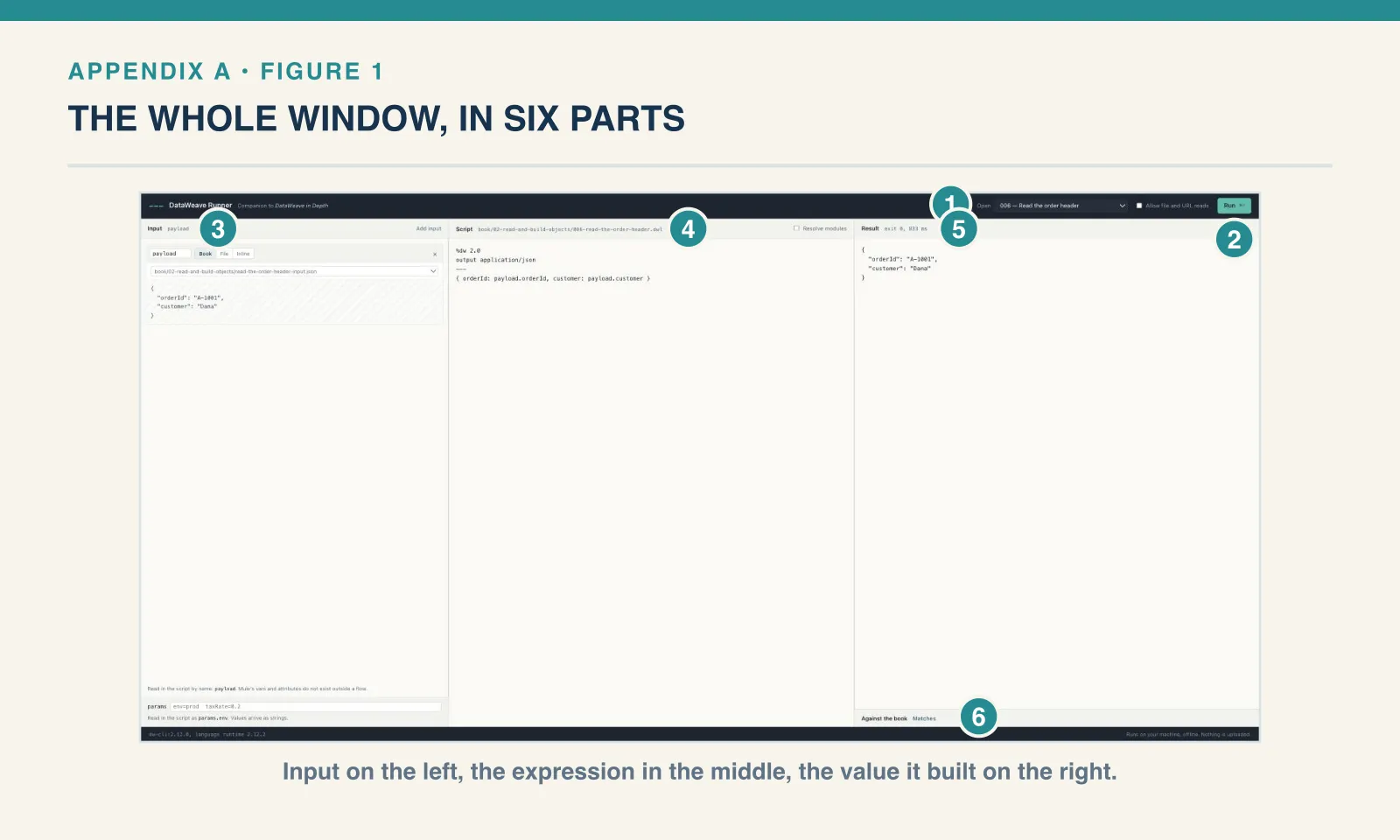
1 — The Open menu. The numbered runnable examples, grouped by chapter in reading order. Module listings and Mule-only probes are identified on the page instead of appearing as standalone CLI scripts. Choosing one loads three things at once: the script, the fixture it reads, and the module path its imports resolve from.
2 — Run. Or ⌘↵. The engine reads the bound inputs and returns its output; the displayed duration depends on the script and your machine.
3 — Input. Each binding has a card whose name is the name the script reads. Its switch selects the source: a book fixture, a file of your own, or text you type. The card displays the contents so you can inspect the input beside the expression using it. The next section explains these sources in detail.
4 — Script. The .dwl file, editable. The header names the file that loaded, and carries the switch that decides whether import … from orders::Feed resolves from that chapter’s folder.
5 — Result. What the engine wrote, with the exit status and how long it took beside it. A failing script prints its error here in full, with the line and column — that is the part worth reading slowly, and several chapters are built around exactly these messages.
6 — Against the book. The band that appears after running a chapter example. It compares your result with the output printed in this book, exit code included, and says Matches or Differs — and when they differ, it shows the printed version underneath.
Under all of it, a footer names the engine: the image, and the language runtime that engine reports. That line is the reason a comparison means anything.
Checking an exercise
Load the exercise, write your version over the script that came with it, and run it. The band tells you whether you arrived where the book did.
An answer that produces the same output text and exit status will match. The comparison removes CLI noise and trailing whitespace; it does not parse JSON to compare values. Field order and a trailing decimal digit can therefore produce a difference. A subtly different result will not, and then the two outputs sit one above the other and the difference is usually obvious.
Three kinds of difference are expected and are not your mistake. A script calling now() or uuid produces a new value every run. And a type error against a JSON value prints the Java object’s identity hash, which changes each time: JsonString@492fea76 against some other number. Everything either side of those still agrees.
Running your own transformations
Choose Start from scratch and you have an empty script and one input. The Runner is not only a reader for this book.
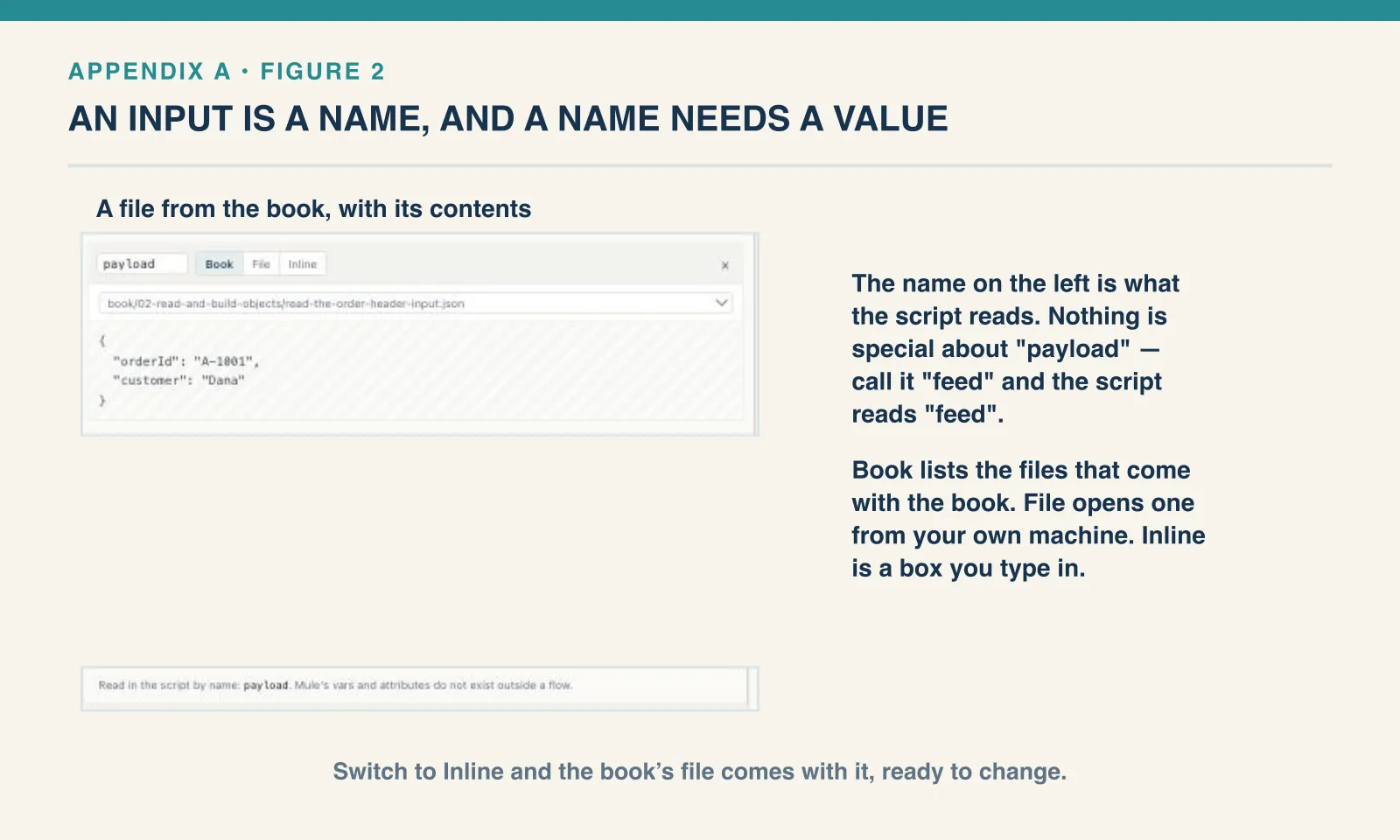
An input is a name. The name on the card is the name available to the script. payload is the conventional main input, but a card named feed is read as feed. In a Mule flow you might use vars.feed; here, inputs are bound directly. The standalone script has no flow supplying vars or attributes.
Each input comes from one of three places, and the switch on the card says which.
Book. A dropdown of every fixture in the companion — every order, feed and CSV the chapters use — with the chosen file’s contents underneath, so you can read the input beside the expression that consumes it. Drop your own files into a scratch/ folder at the root of the clone and they appear in the same list; git ignores that folder, so your own orders stay out of the repository.
File. Anything on your own machine, through your operating system’s file dialog. The browser reads it and shows it where the book’s file would be, with the format set from the extension. Files above 2 MB are refused: the whole thing is held in memory and posted with every run.
Inline. A box you type in. Switching to it from either of the others carries the contents across, ready to edit, which is the quickest way to ask what happens when a field goes missing — take the book’s order, delete a line, run it.
Two controls sit beside the panes. params passes values that arrive in a script as a params object — params.env — and always as strings, so coerce them when you need a number. Resolve modules decides whether an import resolves from the chapter’s folder; the module and library sections have examples that deliberately leaves it off, to show what an unresolved import looks like.
What it cannot do
Three formats and one directive are outside the command-line tool. It reads dw, JSON, XML, CSV, YAML, plain text, form-encoded data, multipart and Java properties. It does not read application/flatfile, application/xlsx or application/java, and a deferred=true output produces nothing at all — empty output and a successful exit, which is the most confusing failure in the set. Reproducing those needs a Mule runtime, which is where Code Builder earns its place.
It is a language, not a flow. No vars, no attributes, no connectors, no error handlers, no MUnit. Everything about a running application belongs to the other book.
Scripts run with no privileges. By default the engine is given --untrusted, so a script reads the inputs you bind and nothing else — no files, no URLs. Allow file and URL reads lifts that for the chapters that need readUrl. The command-line verification container also disables networking. The web Runner needs a local browser connection; keep its default untrusted mode for scripts you have not reviewed.
The supplied route uses Docker. The companion pins the Linux executable and its supporting environment. Native CLI installation is a separate choice; check the release assets for the platform you intend to use.
The comparison is against this edition. The saved outputs belong to the release named in the footer. A newer engine may produce a different result from the same script, so the pinned release gives the comparison a known starting point.
It is a development tool on your own machine. It binds to the loopback address, executes what you type, and is not something to expose to a network. Nothing you put in it leaves the machine.
The fastest test loop: the dw CLI
Before any framework there is the command line, and dw --help shows the CLI in 2.12 has more than one command:
Commands:
  run            Runs provided DW script.
  wizard         Wizard actions.
    add            Adds a new Wizard to your network of trusted wizards.
  validate       Validate if a script is valid or not.
  spell          Runs the specified Spell.
    create         Creates a new spell with the given name.
    list           List all available spells.
    update         Update all spells to the latest one.
  help           Display help information about the specified command.
  repl           Starts the DW repl.
run is the one this book has used all along. Its shape is dw run [flags] [SCRIPT]. Four flags carry most runs: -f for a script file, -i name=file for an input, --path for module resolution, and -s to silence the logging. Three more matter for testing: -li name=content for an input given inline, -p name=value for a parameter, and -o file to write the result to a file. Note the = — it is -i payload=order.json, one argument, not -i payload order.json.
The input and script body can be supplied inline. The imported module still comes from the companion: Give it a literal input and a script on the command line:
./dw.sh run -s --path=book/support/14-modules-and-testing \
  -li 'payload={"items":[{"sku":"PEN-01","price":2.5,"qty":4}]}' \
'input payload application/json import orderTotal from orders::OrderMath output application/json --- orderTotal(payload.items)'10The inline script has to declare its input with input payload application/json, because there is no file extension to infer the format from. Parameters arrive through -p and land in a params object — how a script picks up an environment or a rate without hard-coding it:
Example 248 — Read CLI environment parameters.
Input payload — order.json:
{ "orderId": "A-1001", "customer": "Dana", "coupon": null, "tags": ["gift", null, "rush"],
  "items": [
    { "sku": "PEN-01", "price": 2.5, "qty": 4, "note": null },
    { "sku": "PAD-22", "price": 6.0, "qty": 2 },
    { "sku": "CLP-08", "price": 1.0, "qty": 10 }
  ] }
CLI parameters: env=prod, taxRate=0.2.
%dw 2.0
output application/json
---
{ id: payload.orderId, env: params.env, taxRate: params.taxRate as Number }
./dw.sh run -s -i payload=book/support/14-modules-and-testing/order.json \
-p env=prod -p taxRate=0.2 \
-f book/25-appendix-runner/248-read-cli-environment-parameters.dwl{
"id": "A-1001",
"env": "prod",
"taxRate": 0.2
}Every parameter is a string on arrival, hence the as Number.
validate: declarations without execution
validate checks a script without running its body. Reuse Example 4 — A missing comma so the source of the syntax failure is already familiar. Run this from the companion root:
./dw.sh validate -f book/01-your-first-script/004-a-missing-comma.dwlCompiling `004-a-missing-comma`...
[ERROR] Invalid input ':', expected `}` or ',' for the object expression. (line 4, column 29):
4| { orderId: "A-1001" customer: "Dana" }
^
Location:
004-a-missing-comma (line: 4, column:29)
1 errors foundA valid script can still refer to an input that this invocation has not declared. For validate, -i takes an input name, not the name=file binding used by run. Declare payload when checking Example 6 — Read the order header:
./dw.sh validate -i payload -f book/02-read-and-build-objects/006-read-the-order-header.dwlCompiling `006-read-the-order-header`...
No errors found.That check establishes that the expression compiles with a payload input. It does not inspect the fixture, prove that orderId exists, or check the result against the receiving contract. The numbered example’s normal run performs the next check with actual data.
validate has no --path option. Checking Example 134 — Normalize an order with module functions this way reports that it cannot resolve orders::OrderMath. For a script that imports project modules, use run with the module path and a representative fixture, as chapter 15’s golden check does.
Exit codes
A test loop needs the shell to know whether the run passed. A successful run exits 0; a script that errors exits 255. I checked both by running a good script and a failing one and printing $?. The golden check in chapter 15 preserves that status so an automated build can detect failure.
The repl starts an interactive session. Piped a single 1 + 1, it printed 2 and then died on end-of-input, so it is a tool for a terminal, not a script. spell and wizard fetch shareable scripts from a registry; spell list asked for interactive confirmation and was not taken further.
Parameters from outside the script
A hard-coded rate such as 0.08 requires a source edit when a caller needs a different rate. The CLI’s -p name=value passes a parameter, reachable in the script as params.name:
Example 249 — Convert a CLI rate parameter.
Input payload — orders.json:
[
  { "orderId": "A-1001", "customer": "Dana",
    "items": [
      { "sku": "PEN-01", "price": 2.5, "qty": 4 },
      { "sku": "PAD-22", "price": 6.0, "qty": 2 },
      { "sku": "CLP-08", "price": 1.0, "qty": 10 }
    ] },
  { "orderId": "A-1008", "customer": "Femi",
    "items": [
      { "sku": "PEN-01", "price": 2.5, "qty": 1 },
      { "sku": "INK-03", "price": 3.0, "qty": 3 }
    ] }
]
CLI parameters: rate=0.2.
%dw 2.0
output application/json
import * from Orders
---
payload map (order) -> {
  orderId:  order.orderId,
  rate:     params.rate,
  rateType: typeOf(params.rate),
  total:    subtotal(order) * (1 + (params.rate as Number))
}
Run with -p rate=0.2 and --path set for the module:
[
  {
    "orderId": "A-1001",
    "rate": "0.2",
    "rateType": "String",
    "total": 38.4
  },
  {
    "orderId": "A-1008",
    "rate": "0.2",
    "rateType": "String",
    "total": 13.8
  }
]
params.rate arrives as a String, like a CSV cell, and as Number makes its conversion visible. subtotal(order) * (1 + params.rate) would also coerce under chapter 3’s arithmetic rule; I prefer to state that conversion at the input boundary.
The CLI’s other options make the run reproducible: -i name=file binds each named input, -o file writes the result to a file, --path supplies the module root, and -s quietens the logging. All appear in the CLI’s usage text, which prints on an unknown option.
Comments